
DataLens Handbook
Learn how to use DataLens Chat Agent and the browser extension to collect web data, analyze it, generate reports, and download results.
Open Chat Agent
Collect, analyze, and report with natural language.
Install Extension
Install from the browser store.
Manual Install
Download the fallback package and load it manually.
DataLens has two main ways to collect data:
- Chat Agent: describe the data collection, cleaning, analysis, or reporting task in natural language, and DataLens helps collect web data, organize results, and generate files.
- Browser Extension: select the table or list directly on the webpage, edit fields, optionally configure detail-page extraction, and export the result.
Use Chat Agent when you already know the target website and the fields you need.
Use the browser extension when you want to visually confirm which part of the page will be collected.
1. Browser Extension: Visual Web Data Collection
The browser extension is useful when you want to collect data from the page you are viewing, such as product lists, reviews, job listings, business directories, or article lists.
1.1 Install and Set Up
Step 1: Install the Extension
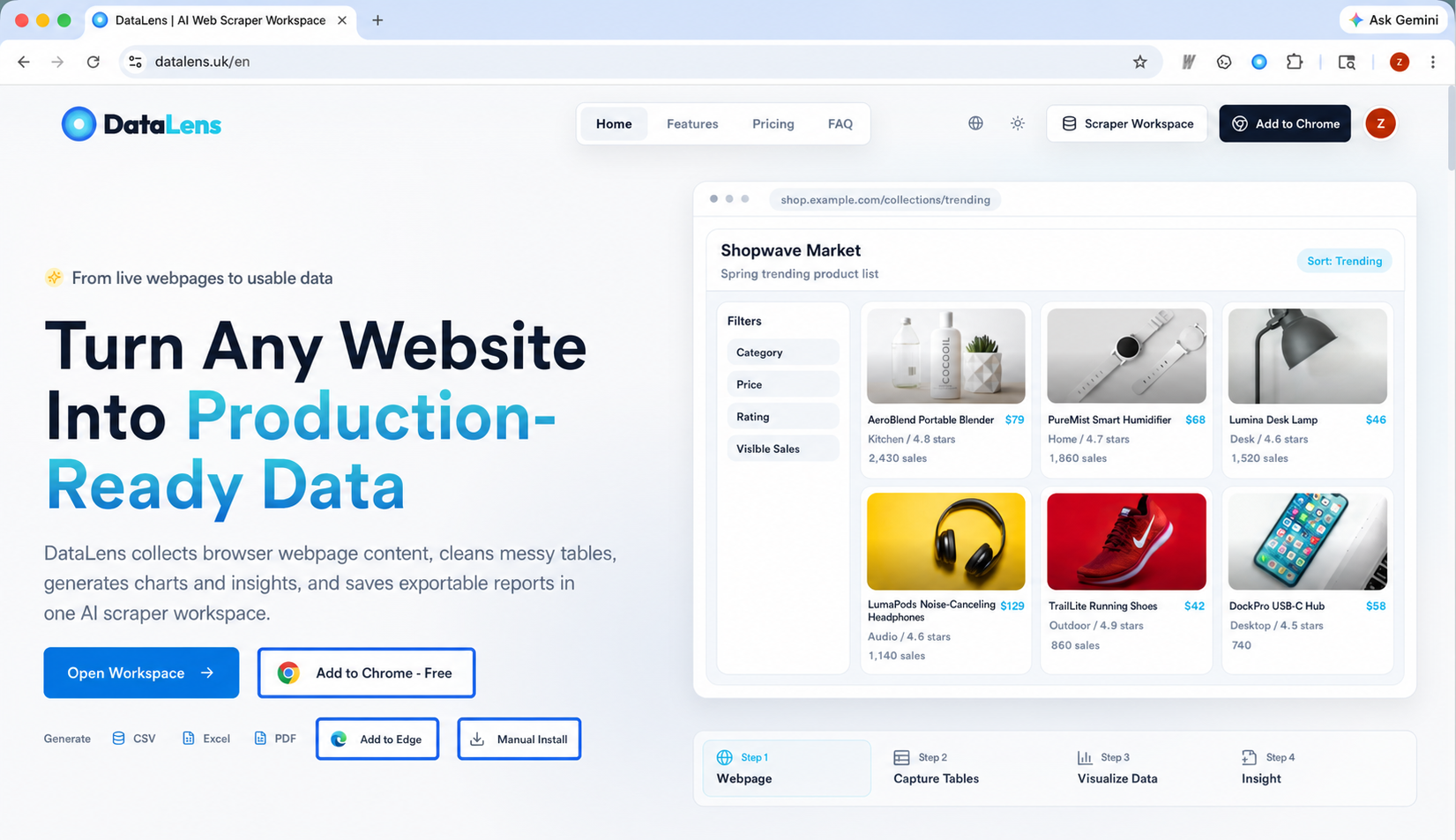
You can install DataLens from the Chrome Web Store or Microsoft Edge Add-ons.
If DataLens asks you to install or update the browser extension, use the store that matches your current browser. Chrome users should use the Chrome Web Store, and Edge users should use Microsoft Edge Add-ons.
If you cannot access the browser extension stores, download the DataLens fallback package, then follow Chrome's official Load an unpacked extension guide.
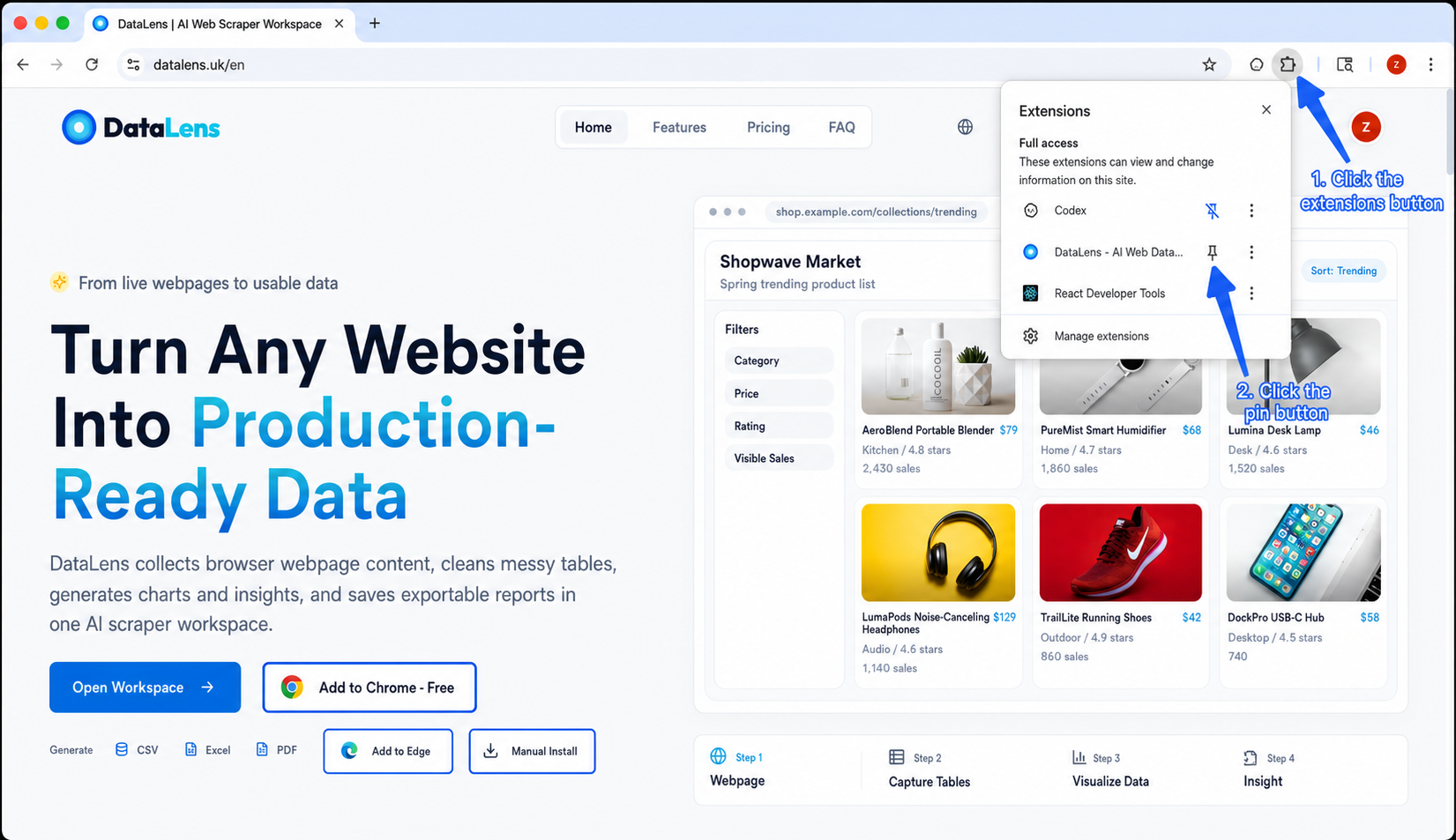
Step 2: Pin DataLens to the Browser Toolbar
After installation, pin DataLens to the browser toolbar:
- Click the Extensions icon in the upper-right corner of the browser.
- Find DataLens.
- Click the pin button.
After pinning it, you can open the DataLens sidebar from any normal webpage.
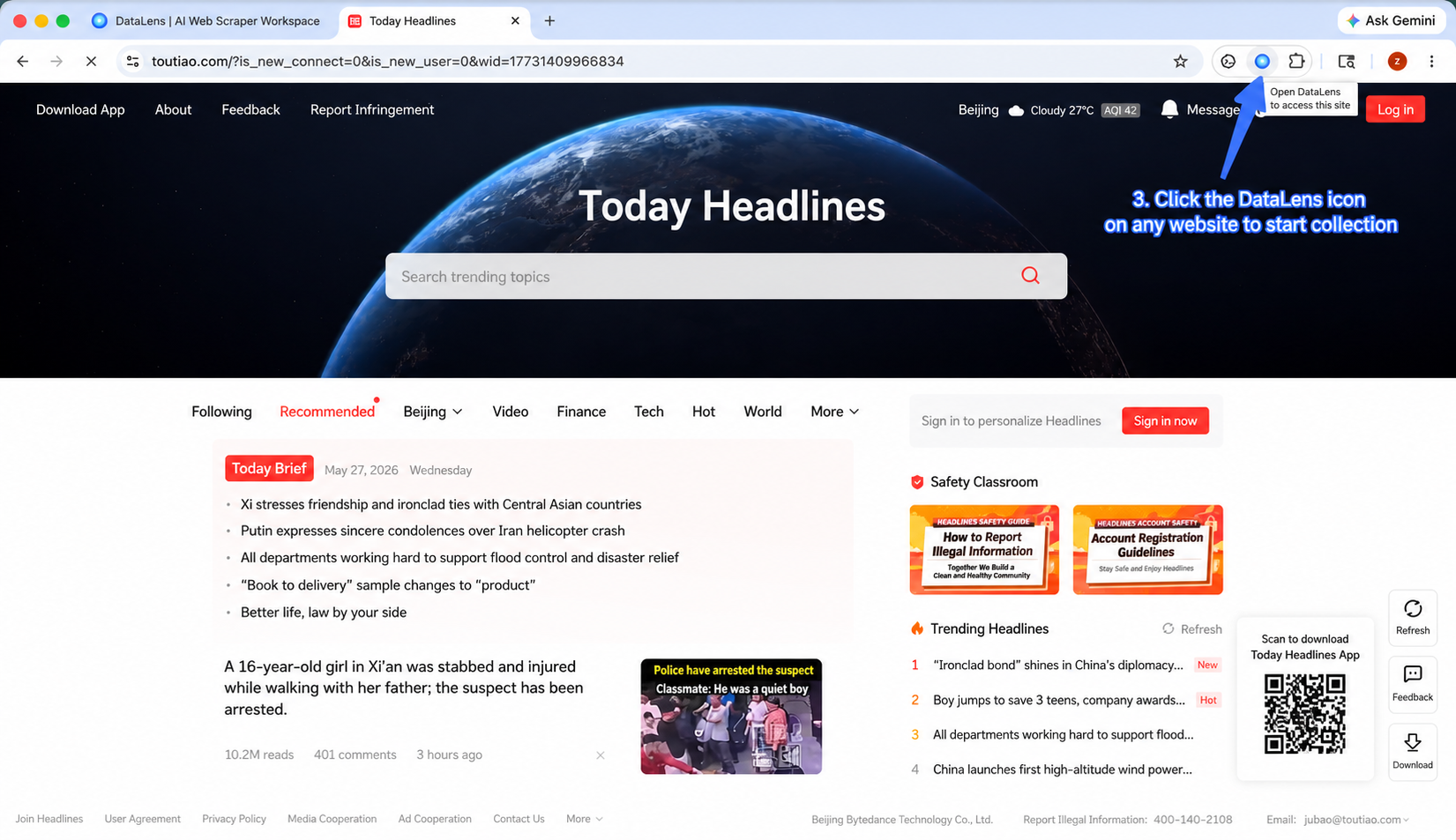
Step 3: Open DataLens and Sign In
- Open the webpage you want to collect data from.
- Click the DataLens icon in the browser toolbar.
- If DataLens asks you to sign in, follow the on-screen instructions.
- After signing in, return to the target page and follow the sidebar instructions to start collection.
DataLens reads the current active tab and opens table or list detection in the sidebar.
1.2 Collect Data in Three Steps
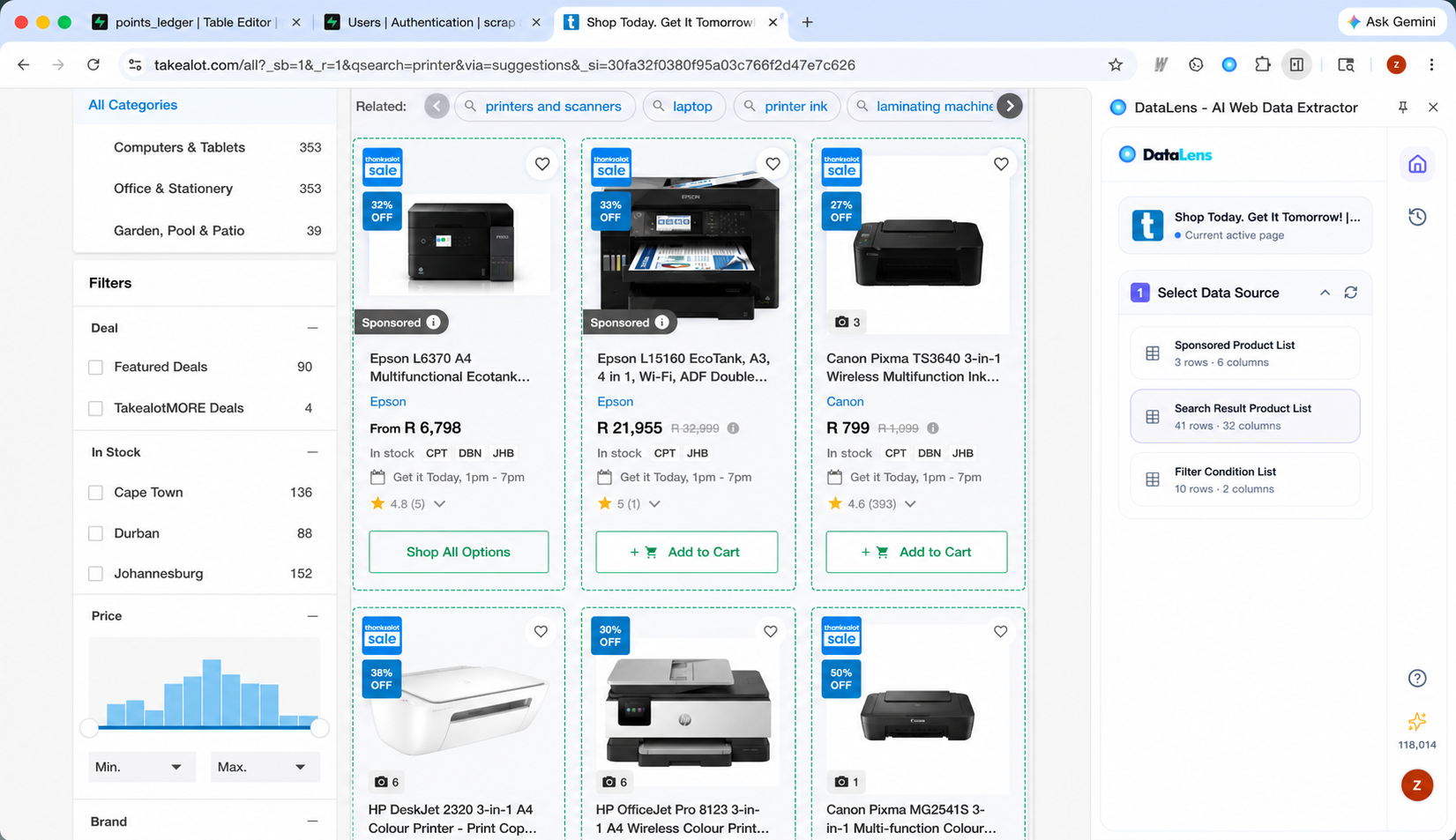
Step 1: Select a Data Source
DataLens automatically detects table or list structures on the page. You will see a list of candidates, each with an approximate row and column count.
How to use it:
- Hover over a candidate to highlight the corresponding area on the webpage.
- Select the table or list you want to collect.
- If the detection is not accurate, click re-detect.
After selection, DataLens moves to field analysis.
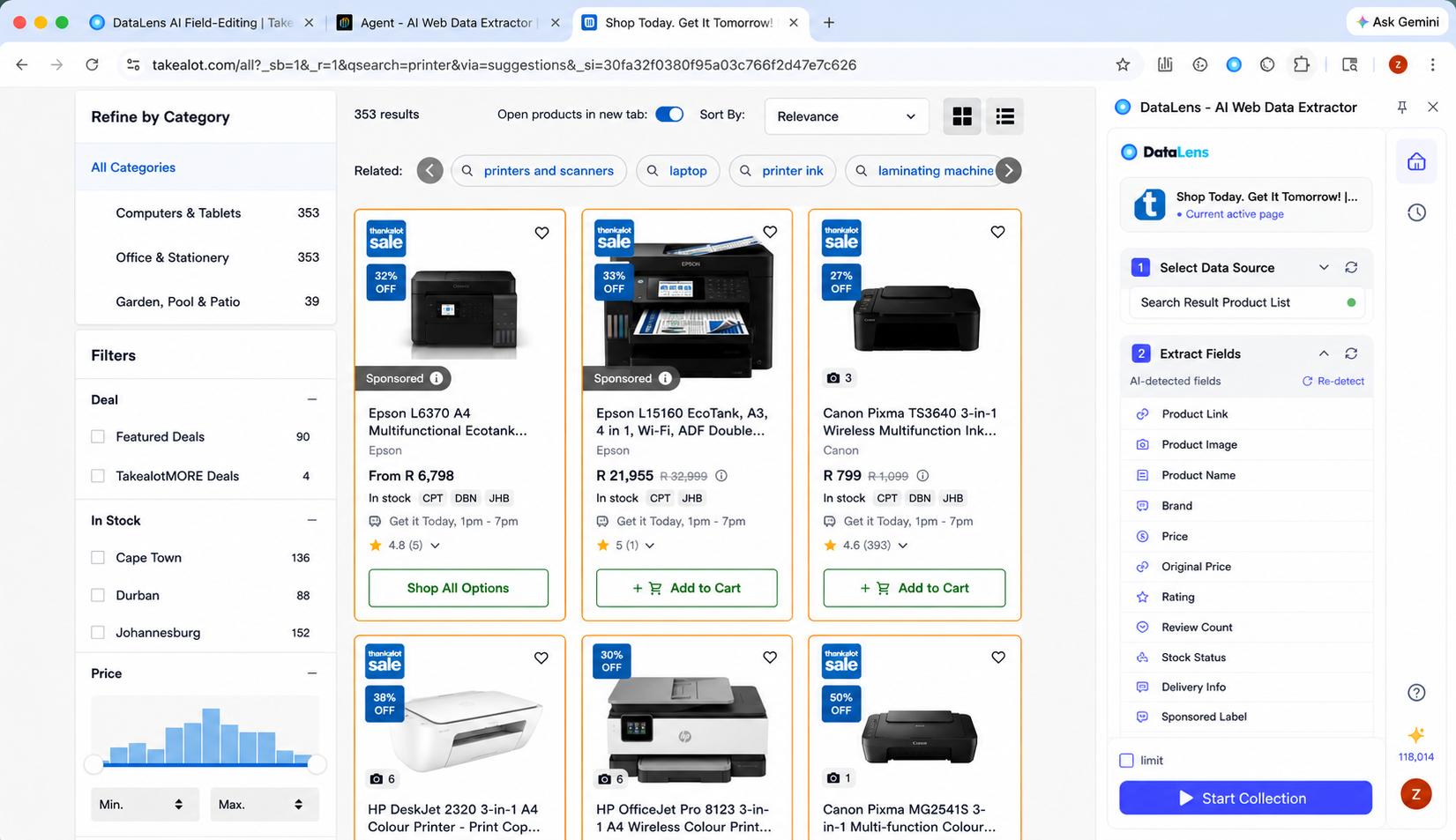
Step 2: Edit Fields
DataLens uses AI to identify fields such as title, price, rating, link, image, and publish time.
You can:
- Remove fields you do not need.
- Keep the fields you want to export.
- Check whether sample values match your expectation.
- Hover over a field to see where it was detected on the webpage.
- Double-click a field name to rename it.
- Set a collection limit.
After confirming the fields, click Start Collection.
Step 3: Configure Detail-Page Extraction (Optional)
Use detail-page extraction only when the data you need is not on the list page but inside each row's detail page, such as:
- Product details, specifications, or long descriptions
- Article body text or author details
- Job descriptions, company introductions, or job requirements
- Business details, addresses, or contact information
If the list page already contains all the fields you need, skip this step and start collection directly.
How to use it:
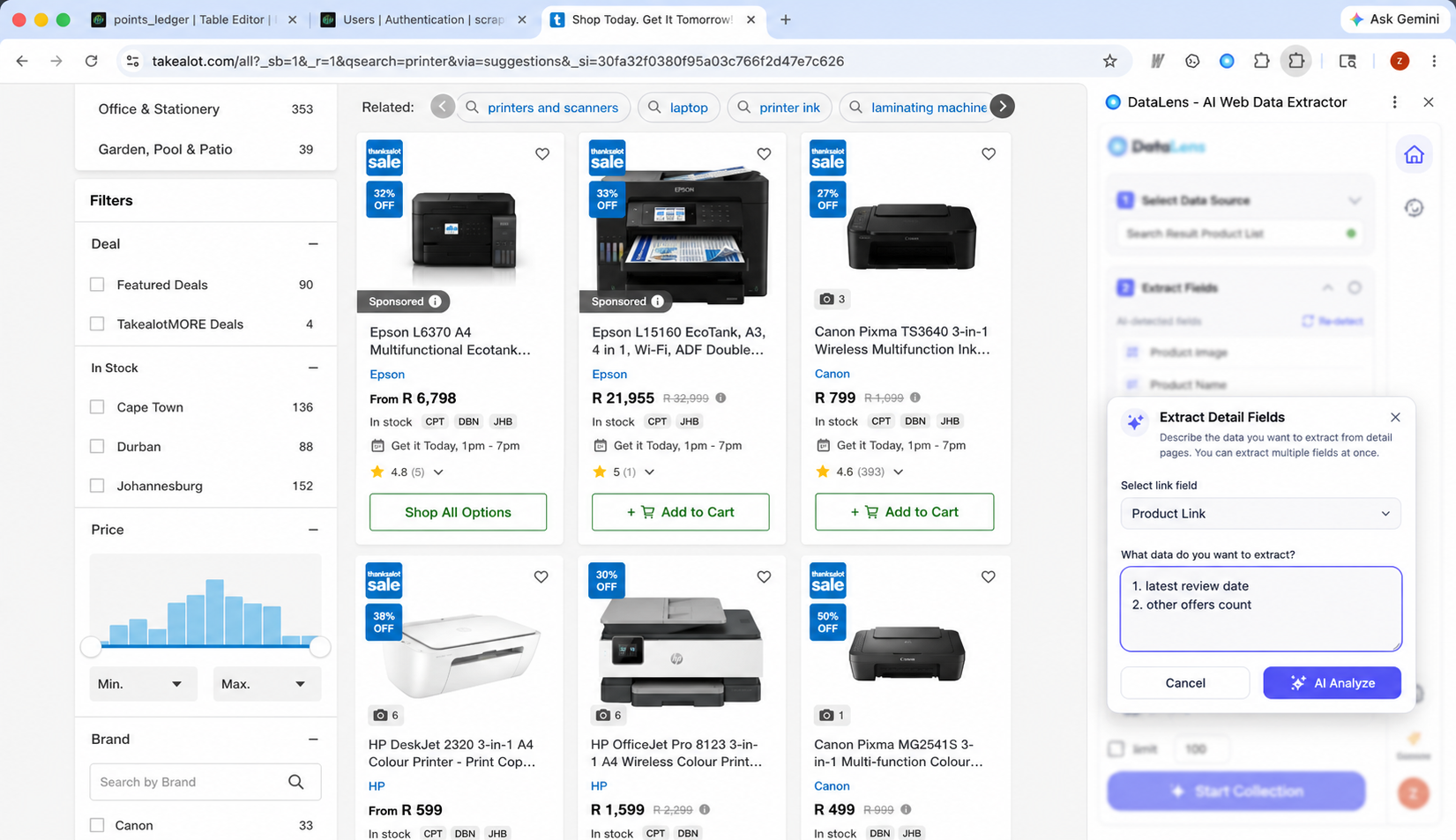
- On the field editing page, click Extract Detail Fields.
- Select a link field that opens the detail page.
- Describe what you want to extract from the detail page, such as "product price, detailed description, and specifications."
- Click AI Analyze.
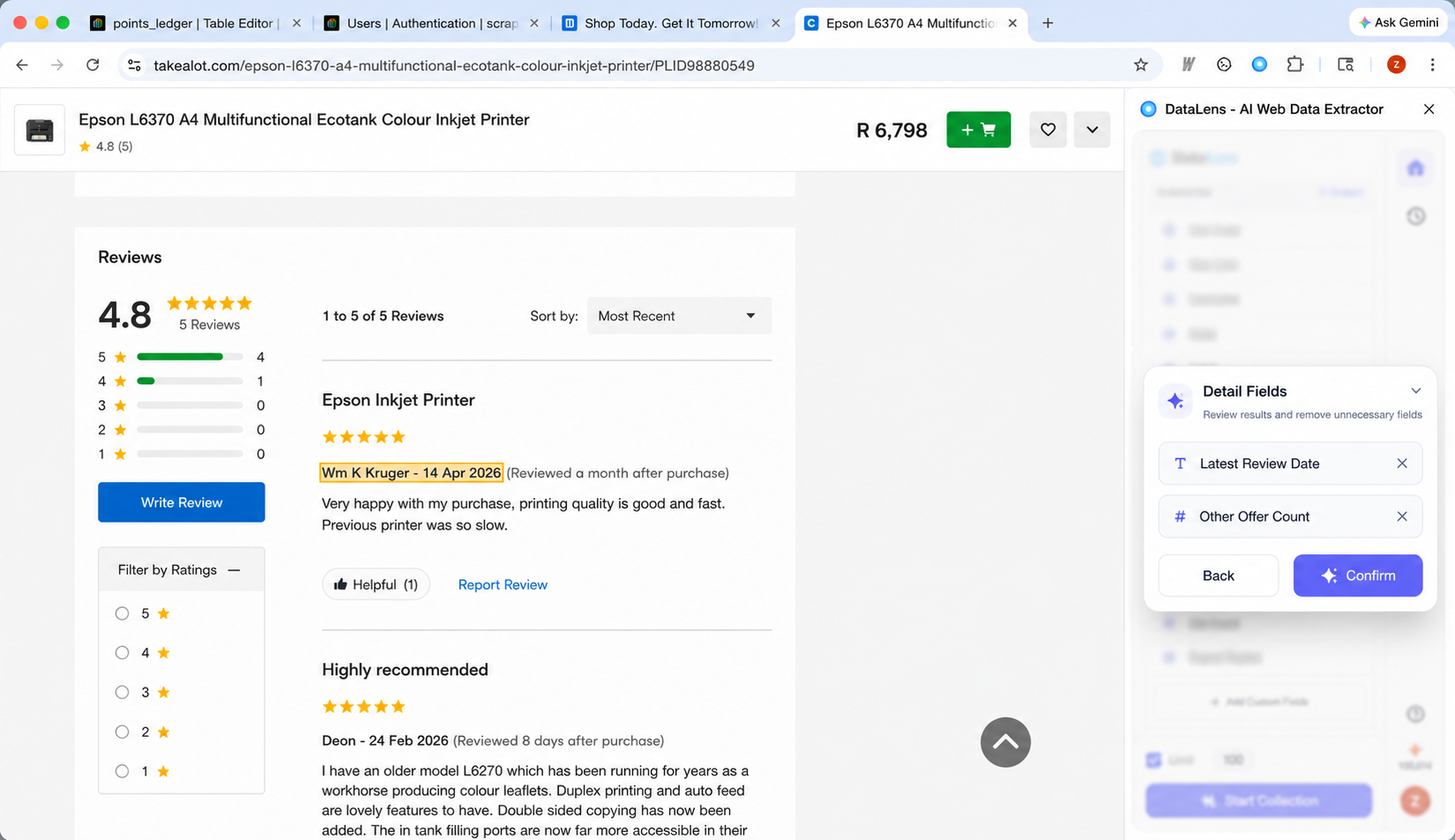
- Review the detected detail fields and remove anything unnecessary.
- If the fields are not what you expected, go back, write a more precise prompt, and try again.
- Click Confirm, then start collection.
After detail-page extraction is configured, DataLens collects the list page first, then opens each detail page to extract additional fields.
1.3 Preview, Download, and Batch Download Images
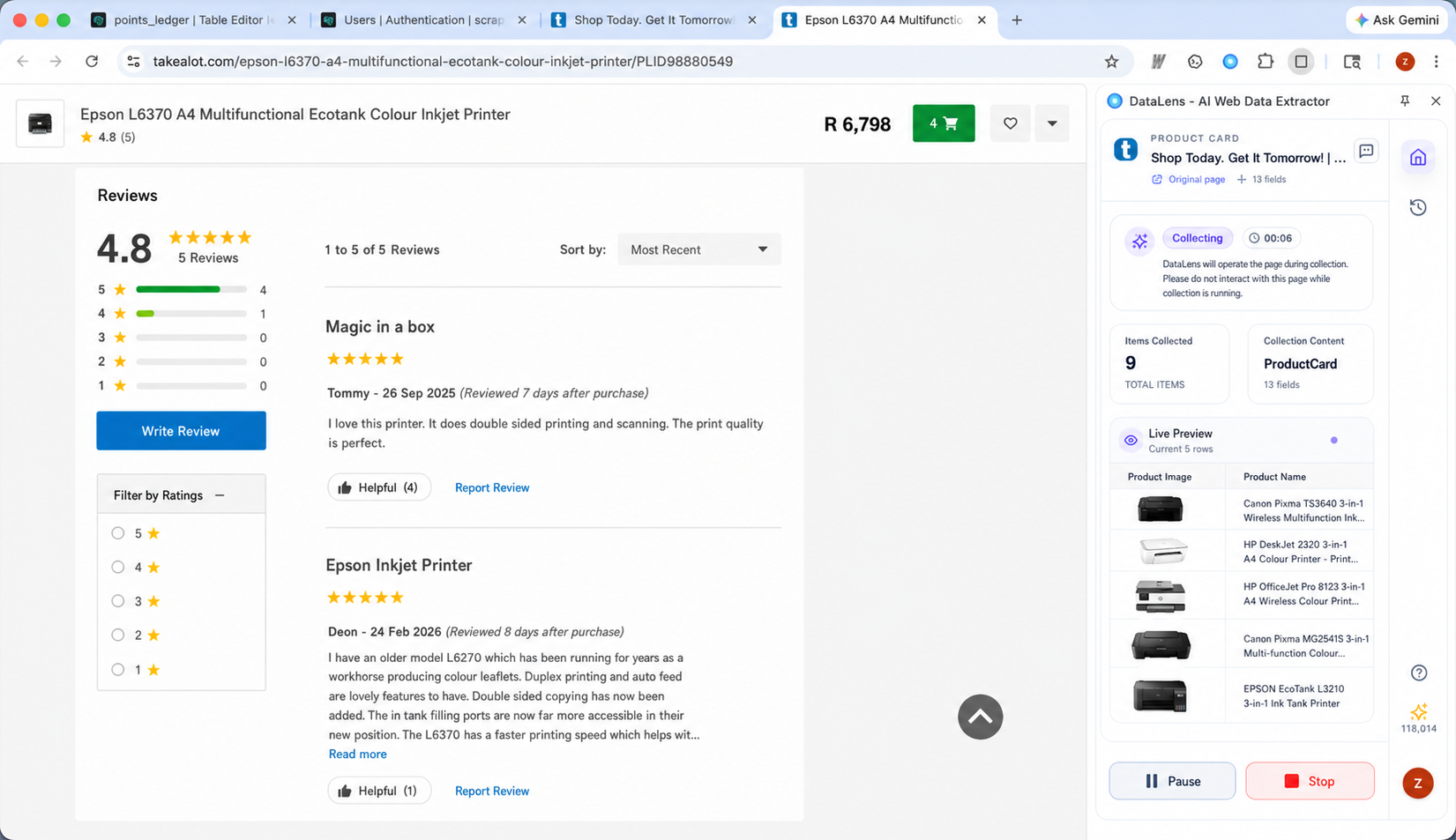
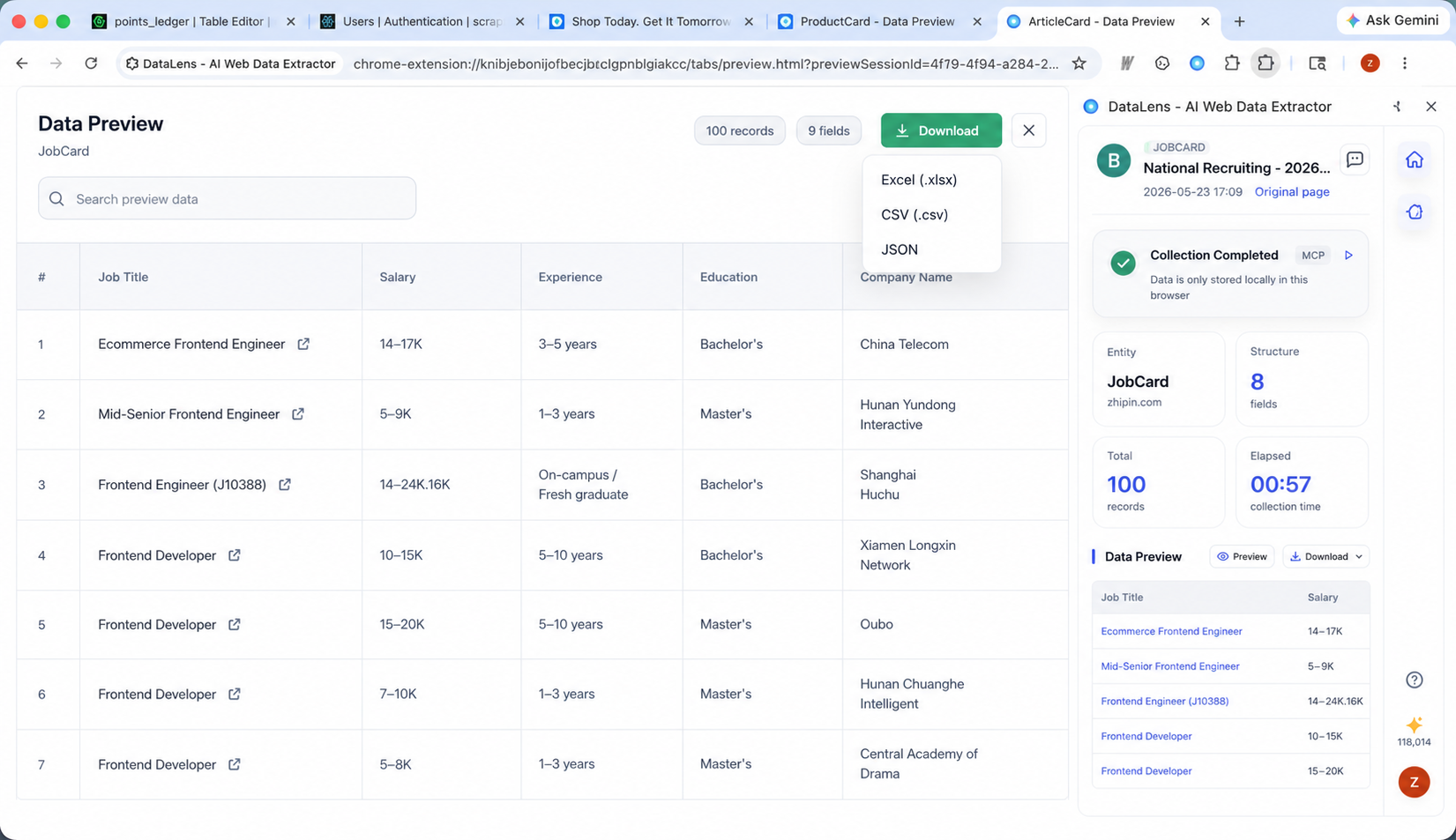
While data collection is running, the sidebar shows the current status, record count, field count, and live preview. After collection completes, you can download the data from the preview page or review completed tasks in history.
Download Structured Data
You can download data from the completion page, history detail page, or preview page.
Supported formats:
- Excel:
.xlsx - CSV:
.csv - JSON:
.json
Choose Excel or CSV if you want to inspect the data in Excel or Google Sheets.
Choose JSON if you want to pass the data into another system or program.
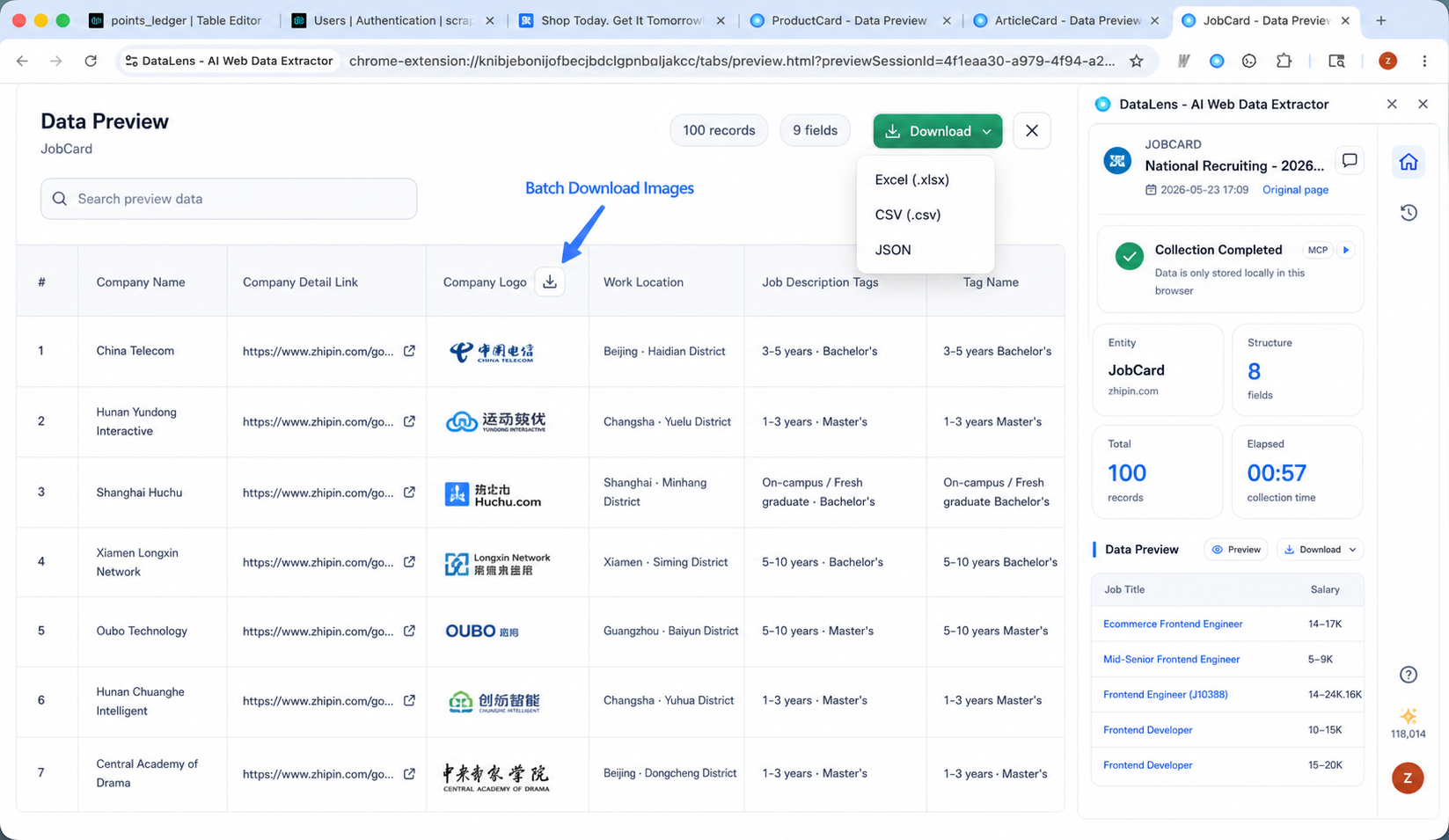
Batch Download Images
If the result contains image fields:
- Open the data preview page.
- Find the image column.
- Click the download icon next to the image column header.
- Choose a save location.
- Wait for the image download to finish.
The preview page shows image download progress, and you can also keep the image download running in the background.
1.4 Key Capabilities
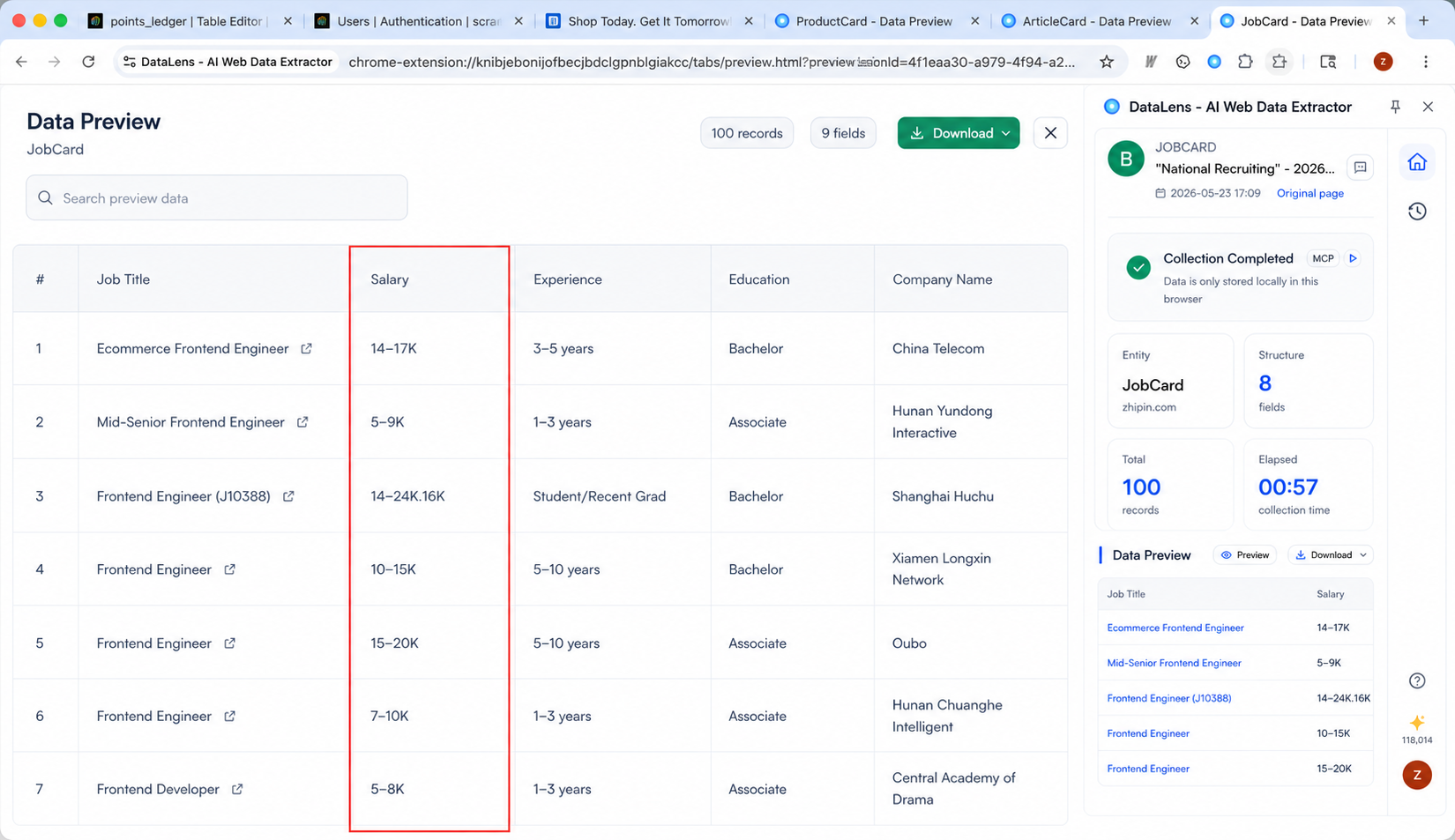
Recognize Encrypted or Obfuscated Fields
Some websites display fields with special fonts or rendering techniques, such as BOSS Zhipin salary fields or Taobao product prices. If the content is visible in your browser, DataLens can automatically recognize and restore it as exportable text.
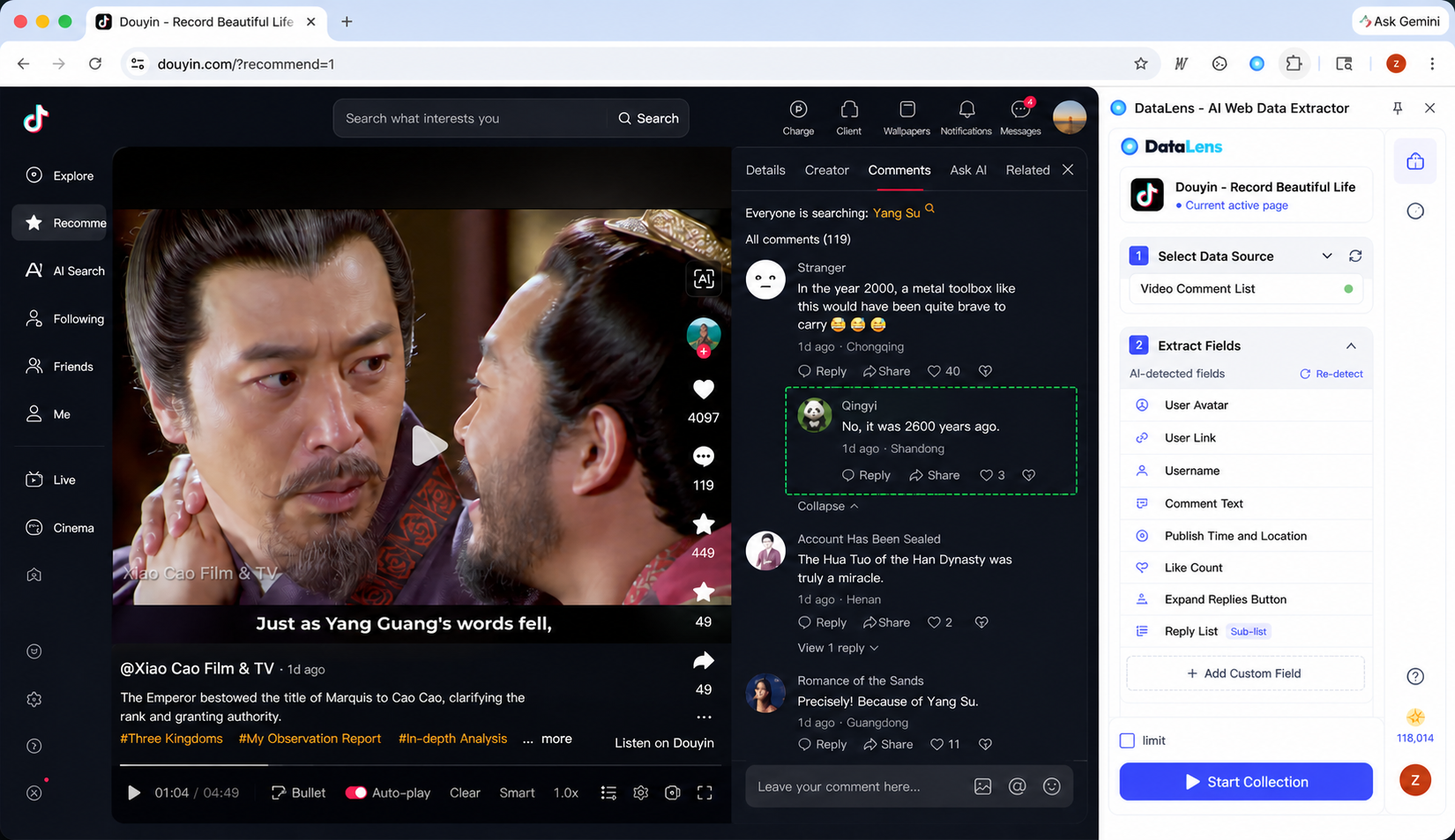
Handle Nested Comments and Expand Buttons
For scenarios such as Douyin comments, community discussions, or threaded replies, DataLens can identify main comments, child comments, and expand buttons. During collection, it can expand visible comment structures and organize child comments into the result.
Extract More Fields from Detail Pages
Detail-page extraction helps you enrich list results with information from linked pages. For example, a list page may only show title, price, and link, while the detail page contains full descriptions, specifications, company profiles, or full article content. DataLens can merge those detail fields into the same result.
1.5 Browser Extension Example
Suppose you want to collect product data from an ecommerce search results page.
Goal: collect the first 100 products, including title, price, rating, review count, image, and detail-page description.
Workflow:
- Open the product search results page.
- Click the DataLens icon in the browser toolbar.
- After signing in, follow the sidebar instructions to start collection on the current page.
- In Select Data Source, choose the product list.
- In field editing, keep title, price, rating, review count, image, and product link.
- Click Extract Detail Fields, choose the product link field, and enter "extract the full description and specifications from the product detail page."
- Review and confirm the detail fields.
- Set the limit to 100.
- Click Start Collection.
- After collection completes, download the Excel file. If you need product images, click the download icon on the image column in the preview page.
2. Chat Agent: Collect, Analyze, and Report with Natural Language
Chat Agent is useful when you want DataLens to handle a full data workflow: open the target page, identify what to collect, collect the data, organize results, generate reports, and create downloadable files.
2.1 How to Write a Clear Request
A good request should include five pieces of information:
- Target webpage: the URL you want to collect from.
- Data object: products, reviews, articles, jobs, businesses, videos, posts, and so on.
- Field requirements: which fields to include or exclude.
- Quantity: for example, first 50 records, first 200 records, or all visible data on the current page.
- Output: whether you need cleaned data, analysis, charts, a Markdown report, CSV, or Excel.
Recommended:
Open this page: https://example.com/search?q=coffee
Collect the first 100 products, including title, price, rating, review count, product link, and image.
If each product detail page contains a description and specifications, extract those as well.
After collection, analyze the price distribution and rating distribution, generate a report, and save a cleaned CSV.
Not recommended:
Please collect trending products from the entire web.
This request is too broad and does not specify the target website, fields, quantity, whether detail-page extraction is needed, or the desired output. Chat Agent cannot start collection directly from this.
2.2 Typical Chat Agent Workflow
A complete task usually follows these stages:
- Open the target webpage.
- Inspect the page structure and, if needed, click filters, search, pagination, or load-more buttons.
- Detect collectable tables or lists.
- Analyze the field structure.
- Configure detail-page extraction if you request detail-page fields.
- Start the collection task.
- Save results after collection completes.
- Organize files generated by the current task.
- Clean, merge, summarize, chart, or report based on your request.
- Show generated files in the file panel for preview and download.
If the target website requires login, Chat Agent will not ask for your password or bypass access restrictions. It will ask you to sign in in the browser, then continue after you complete login.
2.3 How to Collect, Analyze, and Generate Reports
You can put collection and analysis requirements in one message:
Open https://example.com/jobs?q=data
Collect the first 80 job postings: job title, company, location, salary, publish date, and job link.
Open each job detail page and extract responsibilities, requirements, and company introduction.
After collection, analyze:
1. Which cities have the most opportunities
2. Salary range distribution
3. Frequently mentioned skills
4. A shortlist of jobs worth reviewing
Finally, generate a Markdown report and save the cleaned CSV.
You can also work step by step:
First collect the first 50 records from this page. Keep only title, link, publish time, and summary.
After collection completes, continue with:
Based on the data just collected, analyze topic distribution and generate an English report.
2.4 How to View and Download Outputs
Chat has two kinds of outputs:
Collection Results
After collection completes, the result card can open a preview panel. You can download the collection result as Excel from that panel.
Workspace Files
When Chat Agent generates cleaned data, analysis tables, charts, or reports, those files appear in the file panel on the right.
Common file types:
- Raw data: CSV files collected from websites.
- Cleaned data: processed CSV files.
- Analysis outputs: summary tables, chart images, and similar files.
- Reports: Markdown reports or other report files.
How to download:
- Open the file panel on the right.
- Click a file to preview it.
- Click the download button to save it.
If Chat Agent replies with an @fileName file link, you can click that link to open the preview directly.
2.5 How Chat Agent Works
Think of Chat Agent as three layers:
Layer 1: Browser Operation
Chat Agent uses the DataLens browser extension to open the target webpage, read page structure, click filters, detect lists or tables, and start the collection task.
The actual collection is automated by DataLens, instead of manually copying records one by one. This helps handle scrolling, pagination, load-more buttons, and detail-page extraction.
Layer 2: Data Collection
DataLens collects data based on the field configuration. For normal lists, it collects fields from the list page. For detail-page fields, it opens each linked detail page and adds those fields to the result.
After collection completes, the result appears in the current chat and can be used for analysis and reporting.
Layer 3: Data Analysis and Reports
When you ask for cleaning, merging, charts, or reports, Chat Agent generates new files based on the collected data. You do not need to write code; just describe the conclusions, charts, or reports you want.
3. Which Mode Should You Use?
Use the browser extension when you:
- Want to visually confirm which part of the page will be collected.
- Want to manually edit fields.
- Want to quickly export Excel, CSV, or JSON from the current page.
- Want to batch download images from an image column.
Use Chat Agent when you:
- Want to complete collection, cleaning, analysis, and reporting in one request.
- Need detail-page fields but do not want to configure every step manually.
- Need to merge, summarize, or chart multiple files.
- Want Chat Agent to generate downloadable reports and analysis outputs.
4. FAQ
Why does Chat Agent ask me to install or update the extension?
Chat Agent's web collection capability depends on the DataLens browser extension. If the extension is unavailable, Chat Agent stops using browser collection tools and asks you to install, update, or refresh the extension.
Why can DataLens not detect a table?
Possible reasons:
- The current page is not a normal webpage, such as a browser settings page, extension page, or blank page.
- The page has not finished loading.
- The data needs search, filters, scrolling, or expansion first.
- The page structure is unusual and may require Chat Agent to inspect the page structure.
You can refresh the page and re-detect, or tell Chat Agent: "Click the filter/search/load more button first, then collect the list."
When do I need detail-page extraction?
Use detail-page extraction only when the fields you need are not on the list page but inside each row's linked detail page.
For example, if the list page only shows product title and price, but you also need the full product description, choose the product link field and configure detail fields.
Which format should I choose: Excel, CSV, or JSON?
- Excel: best for human review and simple analysis.
- CSV: best for spreadsheets, BI tools, and database imports.
- JSON: best for programmatic processing and more complex structures.
Can I operate the webpage while data collection is running?
Not recommended. During collection, DataLens may automatically scroll, paginate, or open detail pages. To avoid affecting results, avoid operating the target webpage until collection finishes.
What should I keep in mind when using DataLens?
Make sure you have the right to access and use the data on the target webpage, and follow the target website's terms of service, privacy policy, and applicable laws. Do not collect data you are not allowed to access, and do not use DataLens to bypass login, payment, CAPTCHA, or other access restrictions.